10/01/18


Router Security from Port Scans
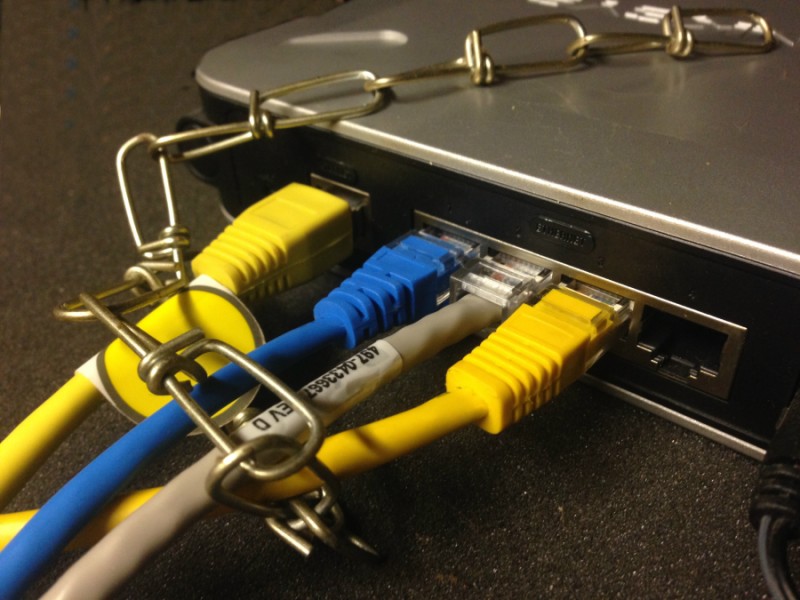
The last few days I have been noticing an increasing number of port scans against our server’s router.
Port scans in and of themselves do not represent much of a bandwidth hit, unless they are part of a wider bot net.
If a bot net is large, includes many many slave computers and hits a router with hundreds or thousands of scans per second, then it can quickly become a DDoS attack.
Overwhelming the routers internal CPU’s ability to process the requests, along with legitimate traffic requests and shutting down the network.
06/18/18
Increase Security By Disabling USB Ports

It is possible to increase the security of your servers, workstations and network by disabling the USB ports.
It may sound a bit extreme but disabling USB access to computers and servers can help keep unwanted software, malware and viruses out of your systems. It can also keep sensitive information on your system, in the office, where it belongs.
An infected USB key inserted into a workstation or server can spread viruses, malewares, Trojan horses, keyloggers all sorts of nasty stuff, and of course, files from the computers and networks can be copied to the USB key and removed from the office.
So lets talk about a couple of ways to keep your network secure by disabling, disconnecting the USB ports or setting up a notification event for USB devices.
06/15/18
Search Engine Purgatory

Are you in search engine purgatory?
So, you built a website, you filled it with useful, informative content, original content.
Maybe you even placed some links to other relevant information that will aid your users.
Your website loads fast, is informative, is useful and it is original, but, you don’t seem to be getting hits.
01/21/18
There Is A New BotNet In Town.
There is a new botnet in town and it may be coming for you.

I have been noticing in my server logs for the past month or so a tremendous amount of hits coming for the same files and folders.
Files and folders that do not exist on my servers and the hits do not come from the same IP or country. I am concluding this is the work of a botnet.
It appears a botnet has been activated and it appears to be searching for and attempting to exploit WordPress blogs and sites.
08/04/17
Is Your Business Phone Number Correct?
Is Your Business Phone Number Correct?

Is your business phone number correct?
Is it published so your customers can find the right number to contact you?
How can your customers contact you if they don't have your phone number?
How much business are you losing each day?
Seems like a very simple and easy to answer question but, too many times in business it is not the case. For a brick and mortar business it is simple enough, are the business cards printed correctly? Is the signage printed correctly? For web or combination online and storefront business this gets a little harder. You can easily verify and correct the things you have direct control over, contact info on your stores web pages, twitter, facebook, instagram and whatnot.
10/13/16
Local Search Taking Over The Internet?
Local Search Taking Over The Internet?
Maybe it is just me but isn’t that just so 1988?
One of the things the Internet promised was to make the world a smaller place.
To bring things far away right into your office or living room.
I can understand local search if you are looking for a restaurant, a mechanic or a guy to fix your AC. What I cannot fathom is how adversely the local search priority is hurting Internet business. Ecommerce services a worldwide market place, not just our local neighborhoods. So if search engines are prioritizing “local search” at the expense of quality search or relative search, the ones who suffer are the consumers and the Ecommerce operators.
The Internet and Ecommerce made it possible and affordable for a small store in Midland, Texas to attract, interact with and ultimately sell to a customer in Portland, Maine. This was partly possible due to relative and accurate search results from the major engines that didn’t put a priority on the customers close proximity, but gave the best results for the term, no matter where the website owner was located.
10/02/14
UK going green to charge up mobile phones and tablets.
Link: http://www.pcmag.com/article2/0,2817,2469642,00.asp
UK going green to charge up mobile phones and tablets.
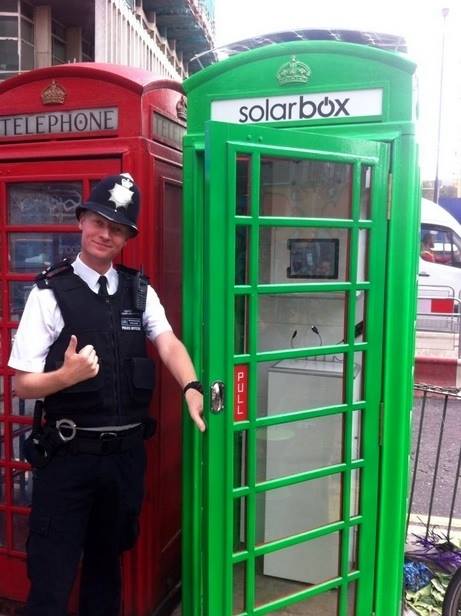
This is a green effort we could all get behind. You have all seen the iconic “Red Call Boxes†of the UK, well now you will find some green ones popping up. These are solar powered recharging stations for your mobile devices. Pop in and charge up, you will be served some advertising while you wait, and I think that is great.
Passersby can now juice up their mobile device in a Tottenham Court Road booth that has been painted green and turned into a solarbox.
…
Just pop into the updated box, which sports an 86cm solar panel on the roof, and plug in your smartphone or tablet; the free service, of course, comes with advertisements while you wait.
This going green effort appears to be privately funded and not at taxpayers expense, which I of course love.
The initial investment came from private sources and the ongoing cost should be covered by the advertising. I love that.
 XML Feeds